CS170: Programming for the World Around Us - Tin Foil Piano with the micro:bit
Activity Goals
The goals of this activity are:- To use loops to create repetition in a program
- To implement code in functions for easy reuse
- To use the micro:bit pin interface to read sensor data from the environment
The Activity
Directions
Consider the activity models and answer the questions provided. First reflect on these questions on your own briefly, before discussing and comparing your thoughts with your group. Appoint one member of your group to discuss your findings with the class, and the rest of the group should help that member prepare their response. Answer each question individually from the activity, and compare with your group to prepare for our whole-class discussion. After class, think about the questions in the reflective prompt and respond to those individually in your notebook. Report out on areas of disagreement or items for which you and your group identified alternative approaches. Write down and report out questions you encountered along the way for group discussion.Model 1: Tin Foil Piano using the micro:bit
There's nothing remarkable about (the piano). All one has to do is hit the right keys at the right time and the instrument plays itself.
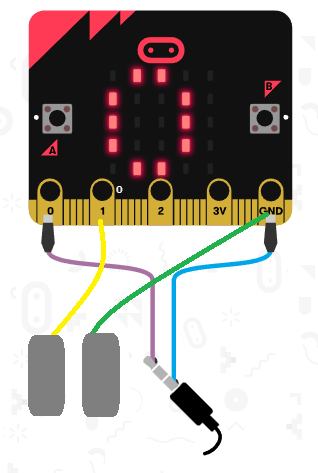
Questions
- The micro:bit comes with 5 pins: P0, P1, P2, a 3-Volt connection, and an electrical ground. We can measure the current on P0, P1, and P2, related to the voltage difference between the pin and ground. With alligator clips, connect two pieces of tin foil to ground and P1.
- You can hook up headphones if you like, but the micro:bit v2 has speakers built in!
- When the P1 pin is pressed (that is, when you touch the P1 tin foil while touching the ground tin foil), play a sound.
- Be very careful never to connect the 3V pad to ground. Only connect the P0, P1, and P2 pads to ground!
Model 2: Changing the Sound
Questions
- A note's pitch is determined by its frequency. Each successive note can be calculated as a "half step" above or below a base frequency. The formula is given above. Using a calculator, what is the frequency of the note right above Middle C (which is 262 Hz), and the note right below Middle C?
- What note do these two frequencies correspond to? Use this table to look up a note by its frequency.
- Using the online pitch detector, sing "do-re-me" into the computer. If you're not in the mood for singing, you can use this online piano player instead. What notes do you hear? What frequencies are they? Do higher frequencies correspond to higher pitched sounds or lower pitched sounds?
- Create a variable called
frequency, and on start, set it to some note (like Middle C, or Concert A, which is 440 Hz). Play that note when P1 is pressed. - Create another variable called step that increments by 1 when you press B, and decrements by 1 when you press A. Then, calculate frequency using the formula above.
- Modify this program to use a loop to play a crescendo of 10 notes when the A+B button is pressed, by setting
steptostep + 1, calling calculateFrequencies, and playing the resulting tone. - Modify this program to play a second (different) note when P2 is pressed. You'll need a new variable to keep track of the frequency and step.
- Modify the program to allow the user to do something to change the beat (like shaking the microbit). Start with one-eighth beat, and keep adding one-eighth until the beat reaches 2; then go back to one-eighth. Hint: you can use an
ifstatement to "wrap around" the value if it is 2, and add one-eighth to it otherwise (this is called anelsestatement)!
Notes and Walkthrough
The micro:bit’s gold pins along its bottom edge (P0, P1, P2, 3V, and GND) let your program sense the world outside the device. When you touch a piece of tin foil clipped to P1 while also touching the foil clipped to GND (the electrical “ground”), a tiny, completely safe current flows through your body, and the micro:bit notices - it fires an event, just like pressing the A button does. That’s the whole trick behind our piano: each foil pad is a key, and touching a key triggers a pin pressed event that plays a note. (Remember the one safety rule: never connect the 3V pad directly to GND.)
Which note? A note’s pitch is its frequency, measured in Hertz (Hz) - vibrations per second. Higher frequency means higher pitch. Musical notes are spaced in half steps, and each half step multiplies the frequency by the same constant, \(2^{1/12} \approx 1.0595\). So from any base note we can compute the note step half steps away with:
\(frequency = base \times 1.05946309436^{step}\)
A positive step moves up the keyboard; a negative step moves down. This is a great job for a function: we’ll write the formula once, in one place, and call it whenever step changes, instead of copying the math everywhere.
A Worked Example
Here’s a small program with one foil key on P1. The A and B buttons move the note down or up one half step from Middle C (262 Hz), and touching the P1 foil plays the current note through the micro:bit v2’s built-in speaker (or headphones):
base = 262  # Middle C, in Hz
step = 0
frequency = base

def calculate_frequency():
    global frequency
    frequency = base * 1.05946309436 ** step

def on_button_pressed_a():
    global step
    step = step - 1
    calculate_frequency()
input.on_button_pressed(Button.A, on_button_pressed_a)

def on_button_pressed_b():
    global step
    step = step + 1
    calculate_frequency()
input.on_button_pressed(Button.B, on_button_pressed_b)

def on_pin_pressed_p1():
    basic.show_icon(IconNames.EIGHTH_NOTE)
    music.play_tone(frequency, music.beat(BeatFraction.QUARTER))
input.on_pin_pressed(TouchPin.P1, on_pin_pressed_p1)
Each touch of the foil shows a musical-note icon on the LED display and plays a quarter-note beep at the current frequency. Press B a few times and touch again - the same key now plays a higher note!
Tracing the Piano
Let’s trace a short session, watching step and frequency (rounded to the nearest whole Hz):
| Event | step after |
frequency after formula |
What you hear / see |
|---|---|---|---|
| Program starts | 0 | 262 Hz | (silence - nothing touched yet) |
| Touch P1 foil | 0 | 262 Hz | Middle C plays; note icon shows |
| Press B | 1 | \(262 \times 1.0595^{1} \approx 278\) Hz | (no sound - only recalculates) |
| Press B | 2 | \(262 \times 1.0595^{2} \approx 294\) Hz | (no sound) |
| Touch P1 foil | 2 | 294 Hz | The note D plays - two half steps above C |
| Press A three times | -1 | \(262 \times 1.0595^{-1} \approx 247\) Hz | (no sound) |
| Touch P1 foil | -1 | 247 Hz | The note B, just below Middle C |
Notice that buttons only change the settings; sound only happens when the P1 event fires. Separating “change the state” from “use the state” is a pattern you’ll see in almost every interactive program.
Common Mistakes
- Not touching GND: the circuit needs a complete loop. If you touch only the P1 foil, no current flows and nothing happens. Keep one hand (or finger) on the ground foil.
- Forgetting
global: ifcalculate_frequencydoesn’t declareglobal frequency, the new value never leaves the function and the pitch never changes. - Doing the math in ten places: recomputing the formula inside every button handler works, but if you ever change the formula you must fix every copy. One function, called everywhere, is the way.
- Using
^for exponents: in Python,^is not “to the power of” - you need**.
Practice Exercises
Exercises 1-3 work in the MakeCode simulator - you can click the P1 pin (while holding GND) with your mouse, and the simulator plays sound through your computer speakers. Exercise 4 is more fun with real foil and alligator clips!
Exercise 1 (warm-up)
Using a calculator (not the micro:bit), find the frequency one half step above Concert A (440 Hz) and one half step below it. Round to the nearest whole number.
Click to reveal a solution to Exercise 1
```python # One half step up: 440 * 1.05946309436**1 = 466 Hz (A-sharp) # One half step down: 440 * 1.05946309436**-1 = 415 Hz (A-flat) ``` Multiplying by the constant moves up; using an exponent of -1 (which divides by the constant) moves down. You can check these against a note-frequency table - they match A#4 and G#4.Exercise 2
Add a second key: make P2 play a note that is always 4 half steps above whatever P1 plays (musicians call this interval a “major third”). You’ll want a second frequency variable, computed inside the same calculate_frequency function.
Click to reveal a solution to Exercise 2
```python def calculate_frequency(): global frequency, frequency2 frequency = base * 1.05946309436 ** step frequency2 = base * 1.05946309436 ** (step + 4) def on_pin_pressed_p2(): music.play_tone(frequency2, music.beat(BeatFraction.QUARTER)) input.on_pin_pressed(TouchPin.P2, on_pin_pressed_p2) ``` Because both frequencies are computed in one function, pressing A or B moves *both* keys together, and P2 stays exactly 4 half steps above P1. That's the payoff of putting shared logic in a function.Exercise 3
Use a loop to play a 10-note rising scale (a “crescendo” of pitch) when A+B are pressed together: repeat 10 times, each time adding 1 to step, recalculating, and playing the tone.
Click to reveal a solution to Exercise 3
```python def on_button_pressed_ab(): global step for index in range(10): step = step + 1 calculate_frequency() music.play_tone(frequency, music.beat(BeatFraction.QUARTER)) input.on_button_pressed(Button.AB, on_button_pressed_ab) ``` The loop body runs 10 times, and each pass climbs one half step, so you hear the pitch stair-step upward. Without a loop you'd need 30 lines of copy-pasted code to do the same thing!Exercise 4 (hardware)
Build the physical piano: clip one piece of foil to GND and one each to P1 and P2. Then add a “beat” feature: create a beat variable starting at 0.125 (one-eighth), and on shake, add one-eighth to it - unless it has reached 2, in which case wrap it back to one-eighth. Use beat as the duration when you play tones. (Hint: this wrap-around needs an if/else.)
Click to reveal a solution to Exercise 4
```python beat = 0.125 def on_gesture_shake(): global beat if beat >= 2: beat = 0.125 else: beat = beat + 0.125 input.on_gesture(Gesture.SHAKE, on_gesture_shake) def on_pin_pressed_p1(): music.play_tone(frequency, 1000 * beat) input.on_pin_pressed(TouchPin.P1, on_pin_pressed_p1) ``` The `if` checks the "wrap-around" case first (reset to one-eighth), and the `else` handles the normal case (add one-eighth). We multiply `beat` by 1000 because `play_tone` measures time in milliseconds, and one full beat is about one second.Submission
I encourage you to submit your answers to the questions (and ask your own questions!) using the Class Activity Questions discussion board. You may also respond to questions or comments made by others, or ask follow-up questions there. Answer any reflective prompt questions in the Reflective Journal section of your OneNote Classroom personal section. You can find the link to the class notebook on the syllabus.Teacher Highlights
- Teachers can set up a MakeCode Classroom environment by activating this template.